
For the developer
Set up PRCHD in about ten minutes, then leave the desk
By the end, your phone reaches the agents on your computer over your tailnet, and your first workspace is running. Seven steps, each ending in a check you can see — so if one stalls, you know exactly where.
Setting this up for yourself?
You are on the right page.
Your computer runs the agents; your phone reaches it over your tailnet. The seven steps below set that up.
You are here
Setting it up for a team?
Start with the team host guide.
One shared computer, Slack channels bound to projects, and no phone to pair. Nine steps, written for the operator.
Set up a team host →
- 01
Install Tailscale on both devices
Sign your computer and your phone into the same tailnet. That gives the phone a private route to your computer, and the host stays off the public internet.
- Open Tailscale on your computer and connect
- Open Tailscale on the phone and use the same account
- Check the device list on either device
Check: Both devices appear in the tailnet device list with a 100.x address.
- 02
Install the PRCHD host
Download the DMG, drag PRCHD to Applications, and launch it. The host lives in the menubar and keeps running when the popover closes.
- Open the downloaded DMG
- Drag PRCHD into Applications
- Launch it and accept the normal first-open confirmation
Check: A PRCHD beacon appears in the menubar and the popover opens.
- 03
Sign in to an agent CLI
Install and authenticate Claude Code, Codex, or Grok on your computer. PRCHD uses that CLI and its existing sign-in; the credential stays with the CLI. A terminal-only workspace needs no agent.
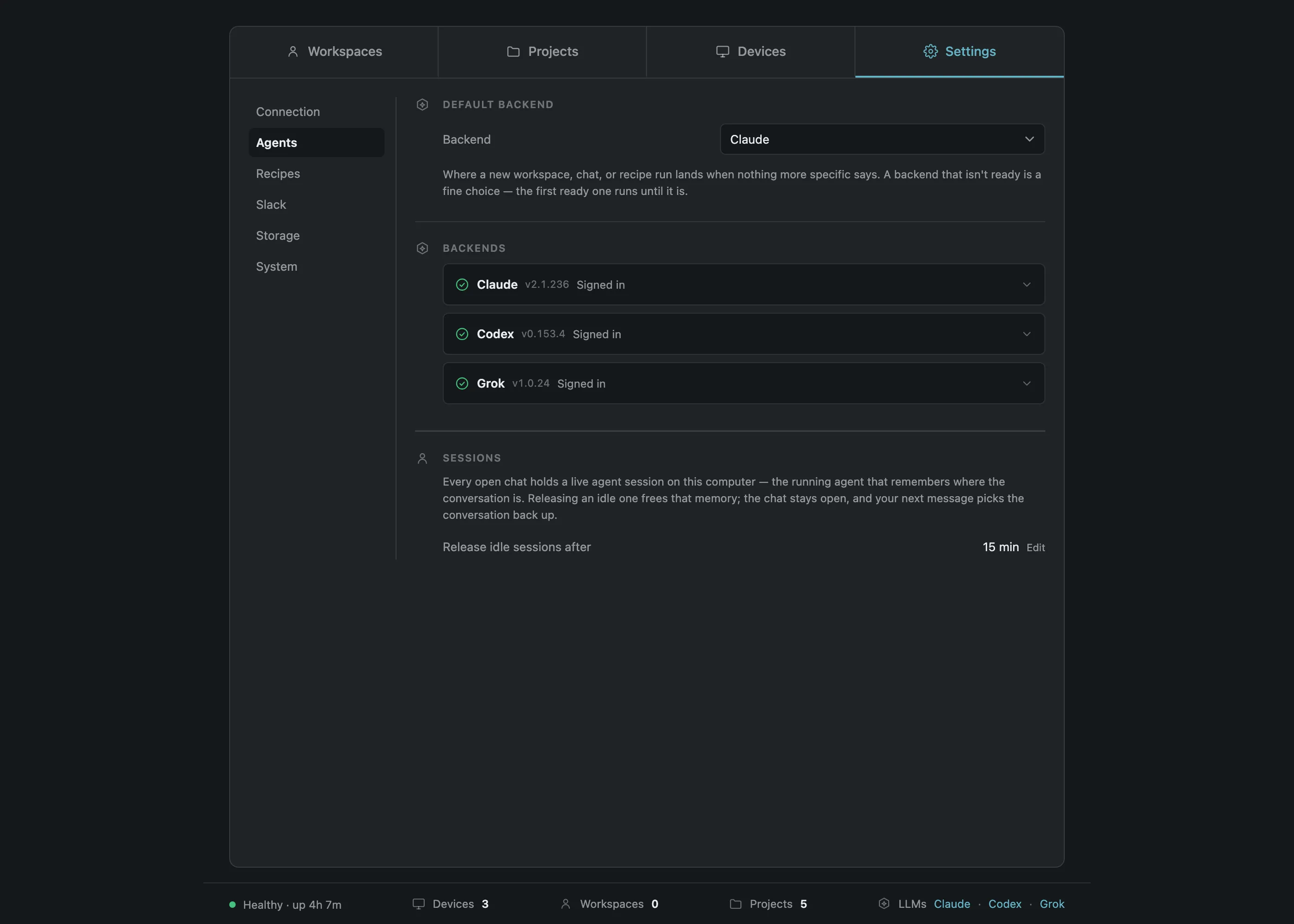
- Open the host dashboard
- Find Agents
- Use the setup guidance beside any unavailable backend
Check: At least one backend reads ready. Others read needs login or not installed with guidance.
- 04
Pair your phone
Open the dashboard, show the pairing QR, and scan it in the phone app. Type the code manually when the camera is unavailable.
- The code carries the host’s address, port, and stable public key
- The phone creates its own keypair and pins the host’s key
- The host stores only a hash of the new bearer token
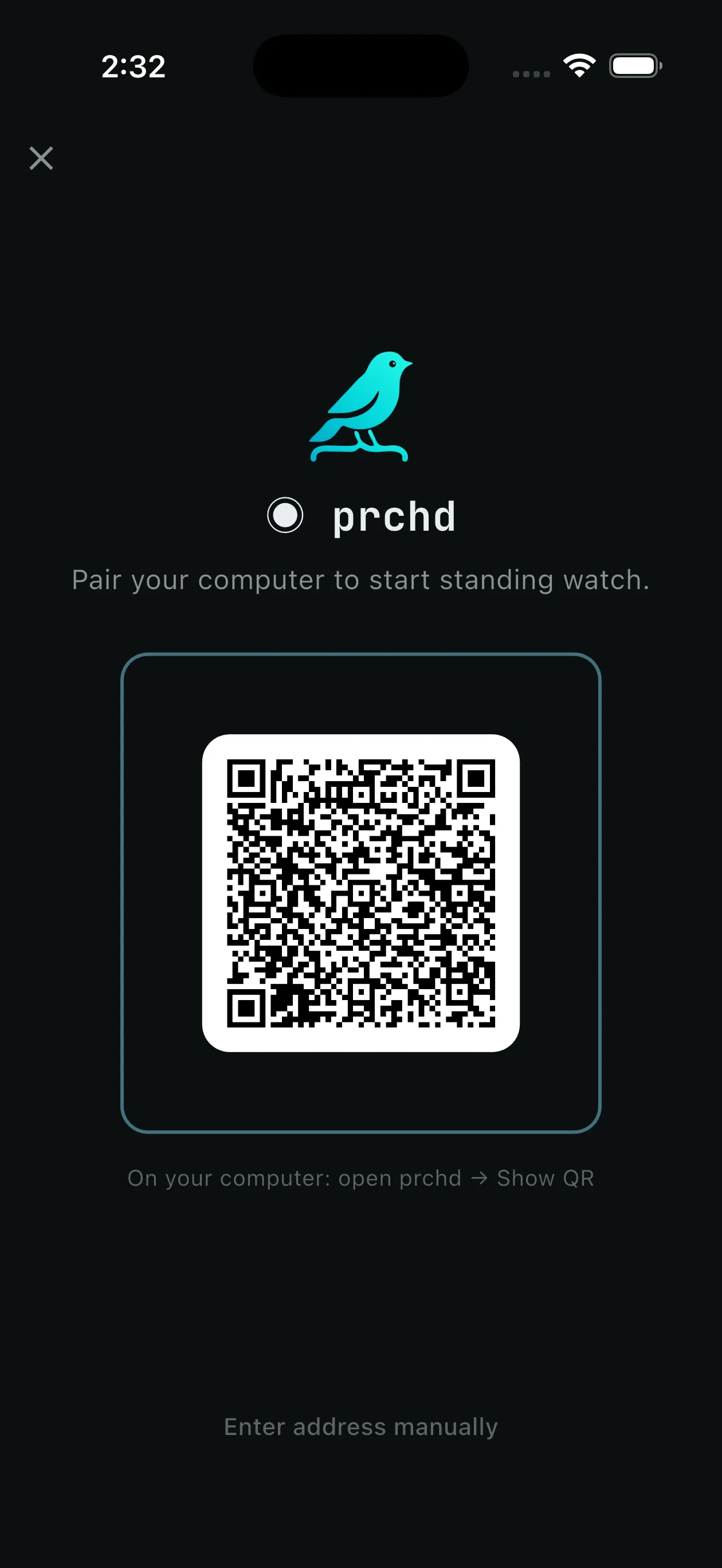
Check: The phone lists your computer with a green reachability beacon.
- 05
Attach your first project
In the host dashboard, choose a local git repository. Stack and monorepo detection seed command buttons and lifecycle defaults in the background.
- Choose the repository directory
- Confirm the default base branch
- Review any detected setup, run, test, build, or lint commands
Check: The project appears on both the host dashboard and the phone.
- 06
Create your first workspace
Start chat-first, choose a base, branch, backend, model, effort, and Plan, Act, or Work mode, then write the first message.
- The workspace enters preparing while its setup script runs
- The staged first message sends unchanged after setup succeeds
- A failed setup moves to needs attention and keeps the worktree
Check: The workspace reads active and the first message appears in the chat.
- 07
Optional: turn on GitHub and push notifications
For issues, pull requests, and PR review, install the gh CLI and sign it in on your computer. For push, connect your computer to the notification service with one email address and a one-time code, then opt in on the phone.
- Run gh auth status to verify GitHub access
- Set notification quiet hours on the phone
- Choose per-project notification switches
Check: GitHub actions appear when gh is ready. Notification settings show your computer as connected after enrollment.
If a check doesn’t pass
The host is not reachable
Open Tailscale on both devices and confirm each is connected. On your computer, check that PRCHD is running in the menubar. If your computer is asleep with no work in flight, wake it and reconnect.
The phone can’t see your computer
Compare your computer’s entry in Tailscale’s device list with the address PRCHD shows. The phone and your computer need a tailnet that permits device-to-device connectivity. Reopen the pairing sheet after network changes.
The QR code will not scan
Fit the entire code in the camera frame and grant camera permission when asked. Use the manual pairing code from the same sheet when camera access is unavailable.
A backend reads needs login
Open Terminal on your computer and sign in through that agent’s own CLI. Return to the dashboard and refresh its status. The credential stays with the CLI.
Setup failed and the workspace reads needs attention
Open the workspace setup process and read the replayable output. Edit the project setup command or its working directory, then use Retry. The worktree and staged context remain available for inspection.
Notifications are enabled but nothing arrives
Confirm the phone granted notification permission, quiet hours are not active, the project switch is on, and your computer reads connected to the notification service. Reopen the phone app to reconcile token changes.
GitHub actions are unavailable
Run gh auth status on your computer, inside the repository. Install or authenticate gh, and confirm the repository has a GitHub remote.
Paired? Send a brief and step away.
Then follow the branch through review, verification, and merge from your phone.