
Guide
Setup
Five steps, about ten minutes. Each one ends with something you can check, so if it stops working you know exactly where.
- 01
Put both devices on the same tailnet
Tailscale is how your phone reaches your Mac without exposing anything to the internet. It is free for personal use and takes about three minutes.
- Install Tailscale on your Mac and sign in.
- Install Tailscale on your phone and sign in with the same account.
- Open the Tailscale app on either device and confirm both machines are listed.
Both devices appear in your tailnet, each with an address starting 100.
- 02
Install the PRCHD host on your Mac
The host is the part that does the work: it runs the agents and owns your files, git, and processes. It lives in your menubar.
- Download the DMG and drag PRCHD to your Applications folder.
- Launch it. A beacon appears in your menubar.
- Click the beacon to open the popover.
Dragging to Applications matters — an app left inside the mounted DMG can check for updates but cannot install them.
The menubar beacon is green and the popover reads "All quiet".
- 03
Tell PRCHD its tailnet address
The host does not guess its own address — you give it one. This is the address the pairing QR hands your phone, and the interface the phone-facing listener binds to. Both values come straight from Tailscale.
- Open the dashboard from the popover, then Settings → Network.
- Set Tailnet name to your Mac’s MagicDNS name — something like
macbook.tailnet.ts.net. - Set Tailnet IPv4 to the same machine’s
100.address, like100.64.0.1. - Both are in the Tailscale menubar app under this device, or from
tailscale statusin a terminal.
Fill in both, then quit PRCHD from the tray and relaunch. The IPv4 is what the phone-facing listener actually binds to, and it only picks up a change on restart — with the name set but the address blank, the QR advertises a host nothing is listening on and the phone fails to connect with no visible reason why.
The Network card’s “Reachable at” row shows your tailnet address rather than 127.0.0.1.
- 04
Sign in to your coding agent
PRCHD drives Claude Code and Codex; it does not replace them or bundle its own. Whichever you already use, sign in to it on that Mac.
- Open the PRCHD dashboard from the popover.
- Find your backend under its sign-in row.
- If it reads "needs login", follow it to sign in, then return.
At least one backend reads ready.
- 05
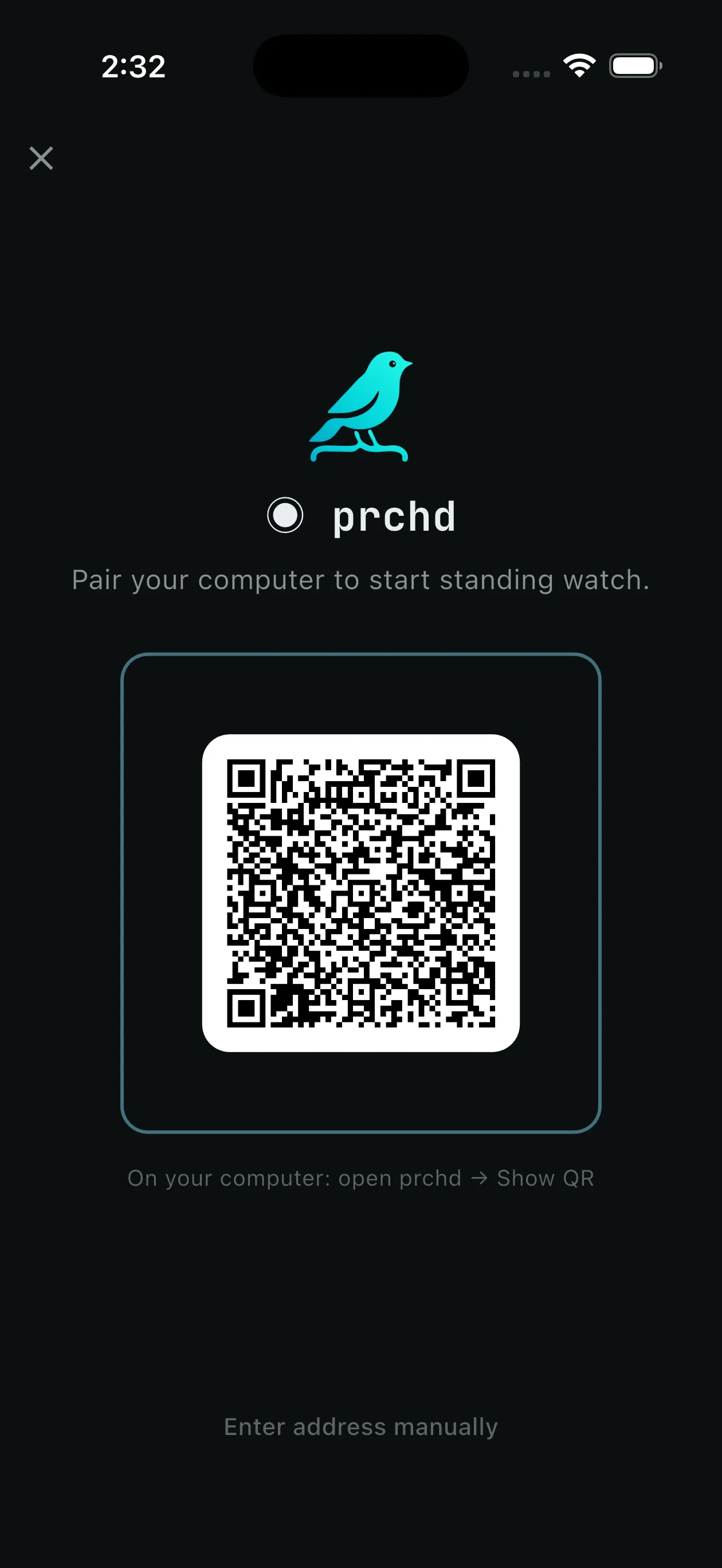
Pair your phone
Pairing is a one-time exchange between two devices you own. It is the only unauthenticated step, and it is what bootstraps the token every later call requires.
- In the dashboard, choose Show QR.
- Open PRCHD on your phone and point it at the code.
- Attach a project on the Mac, then create your first workspace from the phone.
Your Mac appears in the phone’s host list with a green beacon.
What pairing actually does
The QR carries a one-time token, your Mac's tailnet address, and its public key. Your phone generates its own keypair, and the exchange issues a device token that is stored in the device keychain and required on every call afterwards. You can revoke any paired device from the host at any time.
If something is not working
The phone cannot see the Mac
Check Tailscale is connected on both devices, and that the Mac is awake. A sleeping Mac shows as a calm "asleep" state rather than an error — wake it and the phone reconnects on its own. If that is fine, open Settings → Network: when "Reachable at" reads 127.0.0.1, the QR handed your phone a loopback address. Fill in Tailnet name and Tailnet IPv4, relaunch PRCHD, and pair again.
A backend says it needs login
Sign in to Claude Code or Codex directly on the Mac, the same way you would to use it in a terminal. PRCHD never handles those credentials; it only reports what the CLI tells it.
The QR code will not scan
Increase your display brightness and make sure the whole code is in frame. If the camera is blocked, grant camera access in iOS or Android settings — it is used only for this scan.
macOS says the app cannot be opened
The build is signed with an Apple Developer ID and notarized by Apple, so this should not happen. If it does, you likely have a partial download — remove it and download again.
Pull requests are unavailable
PR drafting shells out to the GitHub CLI. Install gh and run gh auth login on the Mac; PRCHD detects the change and enables the action. PRCHD holds no GitHub tokens of its own.
Still stuck? Email hello@prchd.app and describe which step's check failed.